Docs
Invoices
Create, manage, send, and track invoice status in Effitrio
On this page▼
Invoices
This guide covers creating and managing invoices, sending them to clients, exporting PDFs, and how status moves in the app. On laptop and desktop, create, preview, and edit typically open in a slide-over so your invoice list stays visible.
Creating invoices
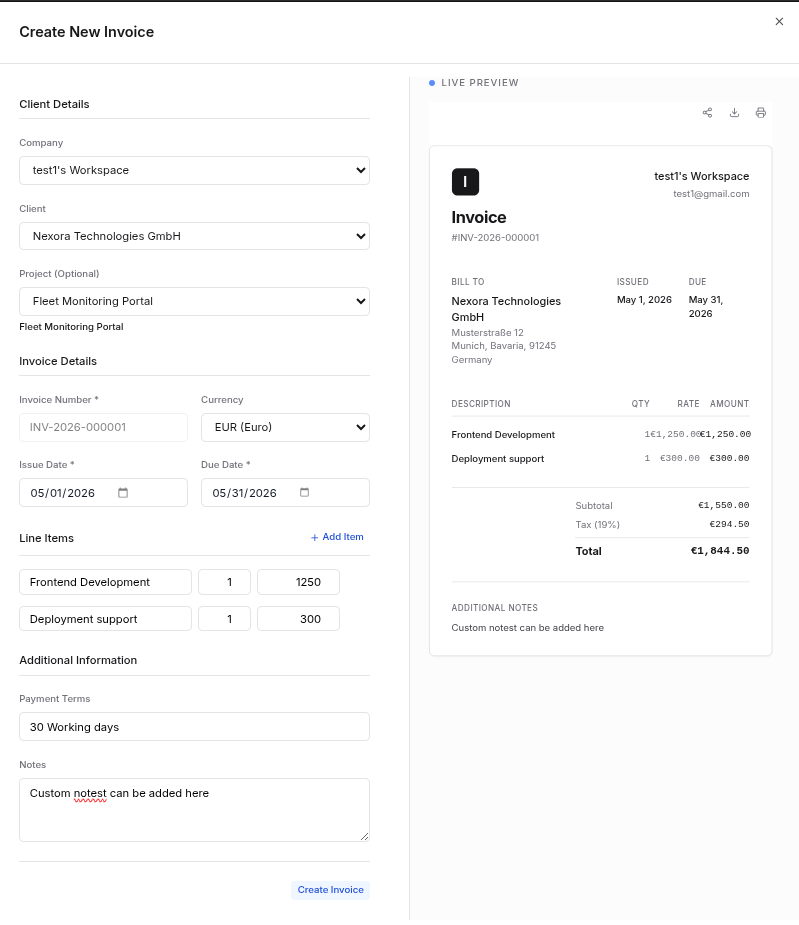
- Open Finance → Invoices.
- Click New Invoice.
- Choose a client (required before you can send), add line items (description, quantity, rate), set due date and any notes.
- Save to store the invoice. New invoices start as a Draft.
Preview and edit
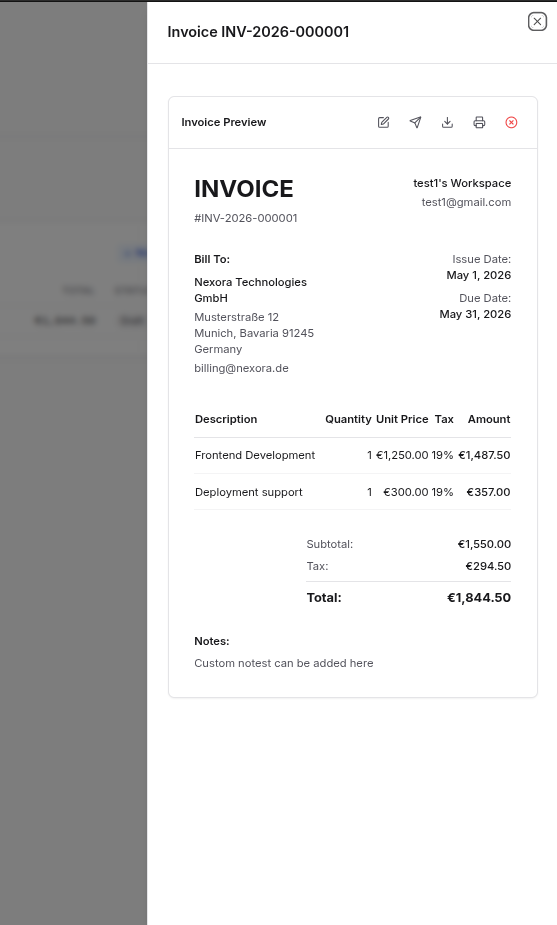
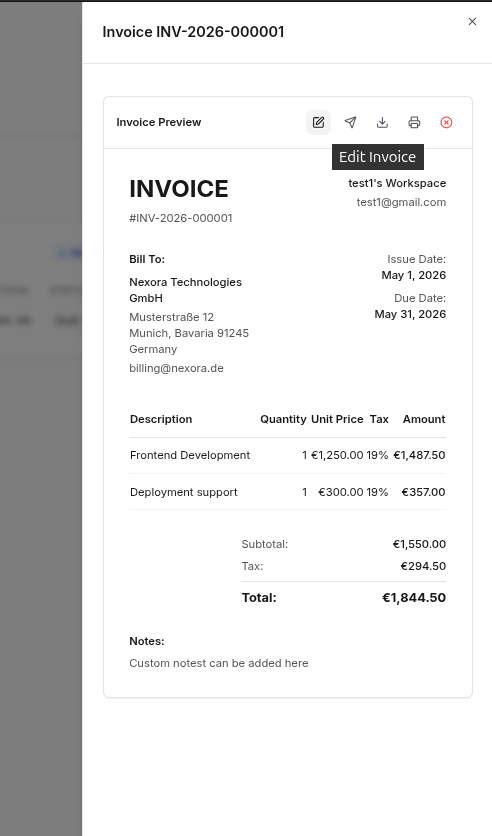
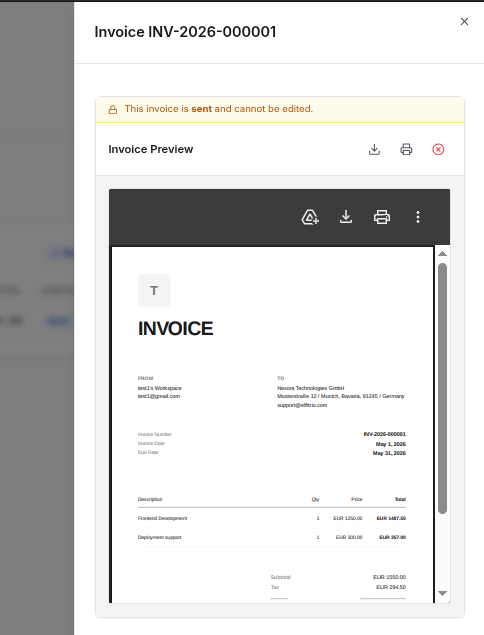
Open an invoice from the list to see the preview. Use Edit while it is still a draft. After it is sent, editing is limited so your records stay reliable for bookkeeping and compliance.
Sending to the client
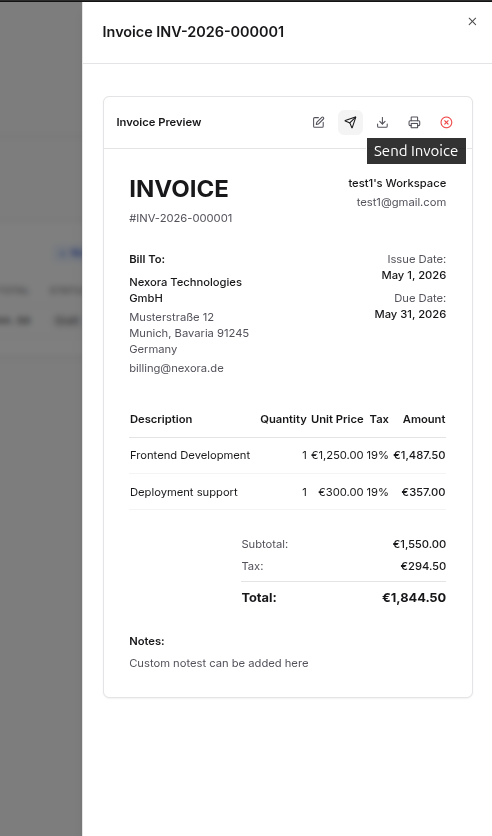
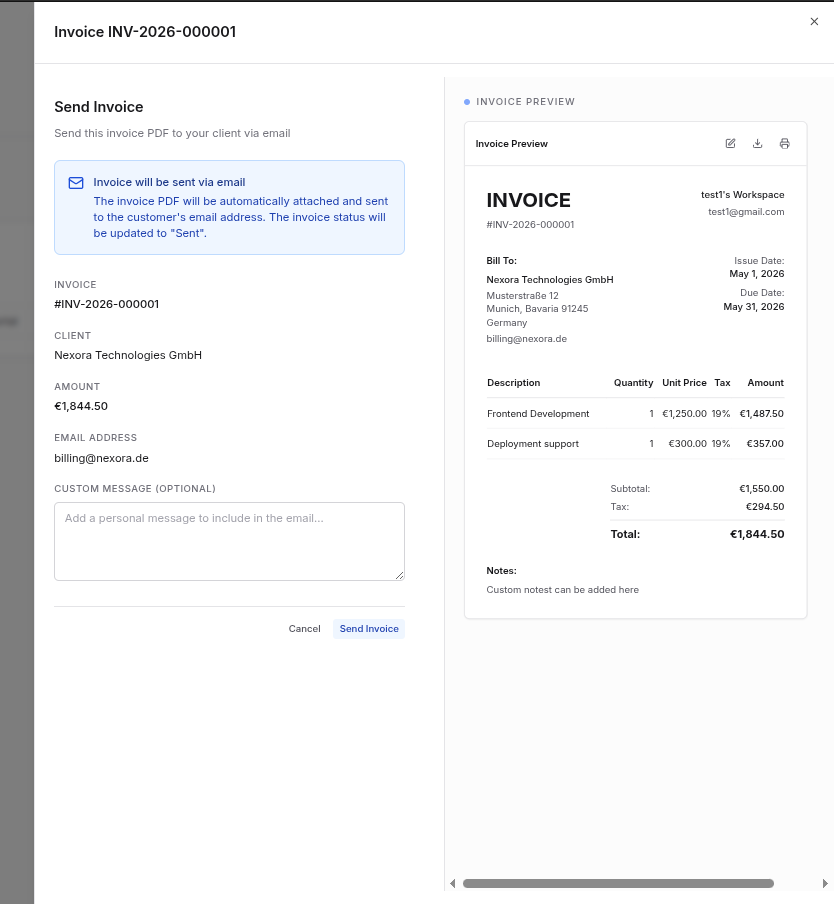
From the preview, use Send. Effitrio emails the client a PDF attachment. The invoice must have a client linked.
Download and print
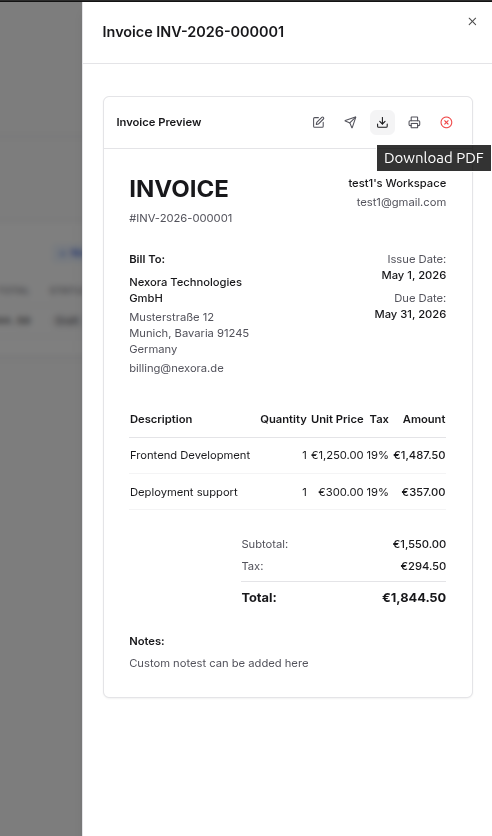
- Download saves the PDF to your device.
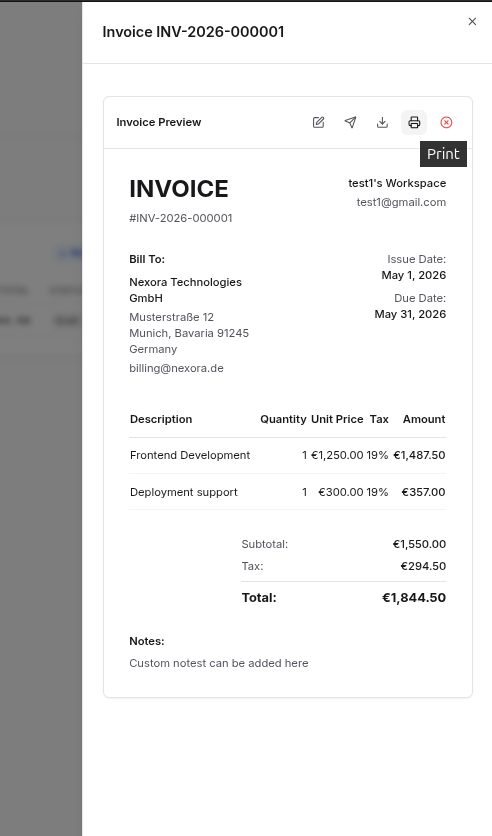
- Print opens your browser print dialog for a paper copy.
Invoice status
These are the statuses you will see, and how an invoice can move:
| Status | Meaning |
|---|---|
| Draft | Not sent yet; you can edit and delete the draft. |
| Sent | Delivered to the client; you can mark paid, cancel, or wait for the due date. |
| Overdue | A Sent invoice whose due date has passed — Effitrio can move it here automatically. |
| Paid | Payment recorded. |
| Cancelled | Voided; this is final. |
How status changes:
- Draft → Sent — You send the invoice (email + PDF). Needs a client on the invoice.
- Sent → Overdue — Happens automatically when the due date has passed.
- Sent or Overdue → Paid — You mark as paid when you receive payment.
- Draft, Sent, or Overdue → Cancelled — You cancel to void the invoice (cannot be undone).
You cannot move from Paid or Cancelled back to an earlier status.
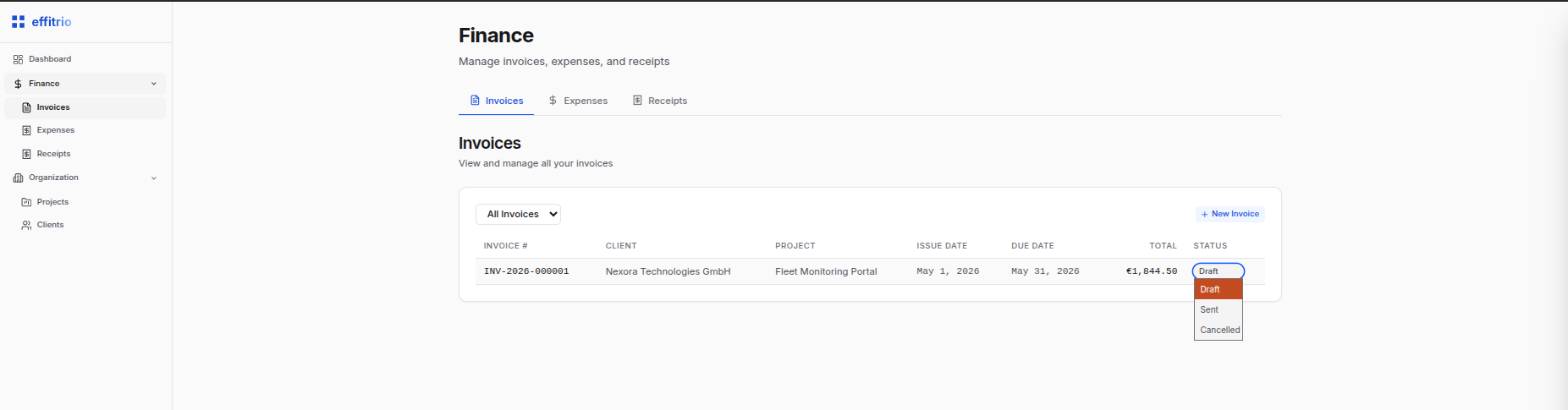
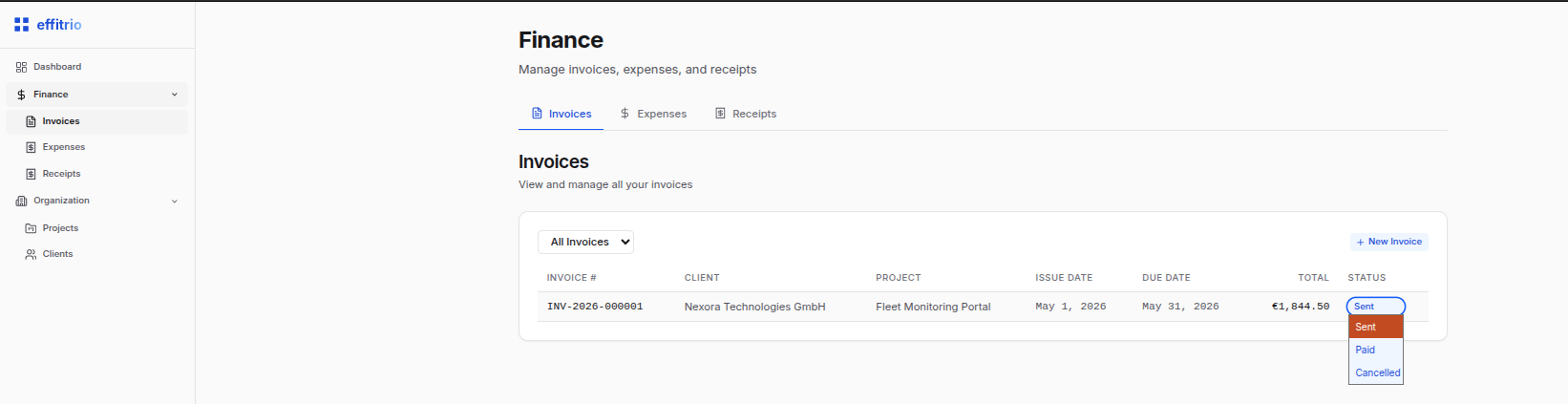
Cancel (void) vs delete
- Cancel — Available for draft, sent, or overdue invoices you need to void. The invoice becomes Cancelled and stays in the system for your records.
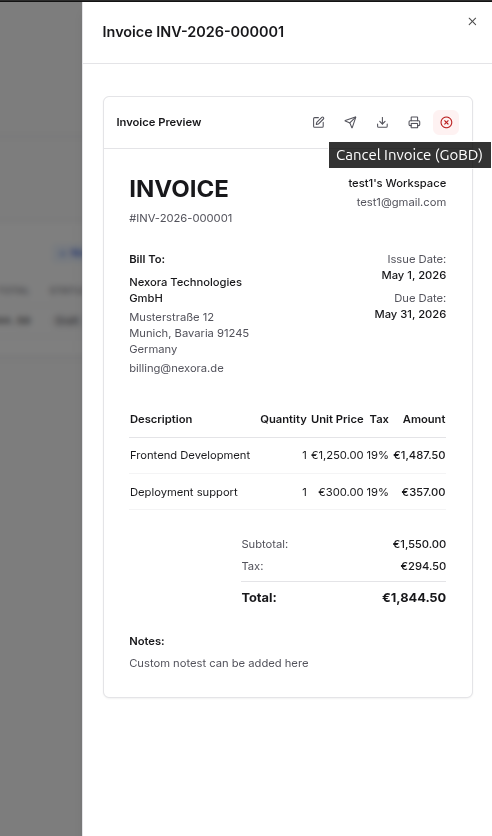
- Delete — Only draft invoices can be permanently removed, from the invoice actions when allowed.
Templates
Choose a template and branding (logo, colors) so new invoices match your business. Which templates you get can depend on your plan.
Recurring invoices
On Pro, open the Recurring sub-tab under Finance → Invoices to create schedules that generate invoices automatically. See Recurring invoices for create, pause, and edit steps.