Docs
Invoice overdue reminders
Use AI to draft payment reminder emails for overdue invoices, review them, approve what should be sent, then send approved reminders.
On this page▼
Invoice overdue reminders
This workflow helps you send payment reminders for overdue invoices while keeping you in control. Effitrio drafts reminders first, then pauses so you can review the invoice PDF, review/edit the email, and approve what is allowed to be sent.
What you’ll do
- Trigger the workflow from the AI Assistant
- Review the created goal in the Action Center
- Approve the goal to start drafting
- Review invoice details and the drafted email
- Approve the email(s) you want to send
- Send the approved reminder(s)
Step-by-step walkthrough
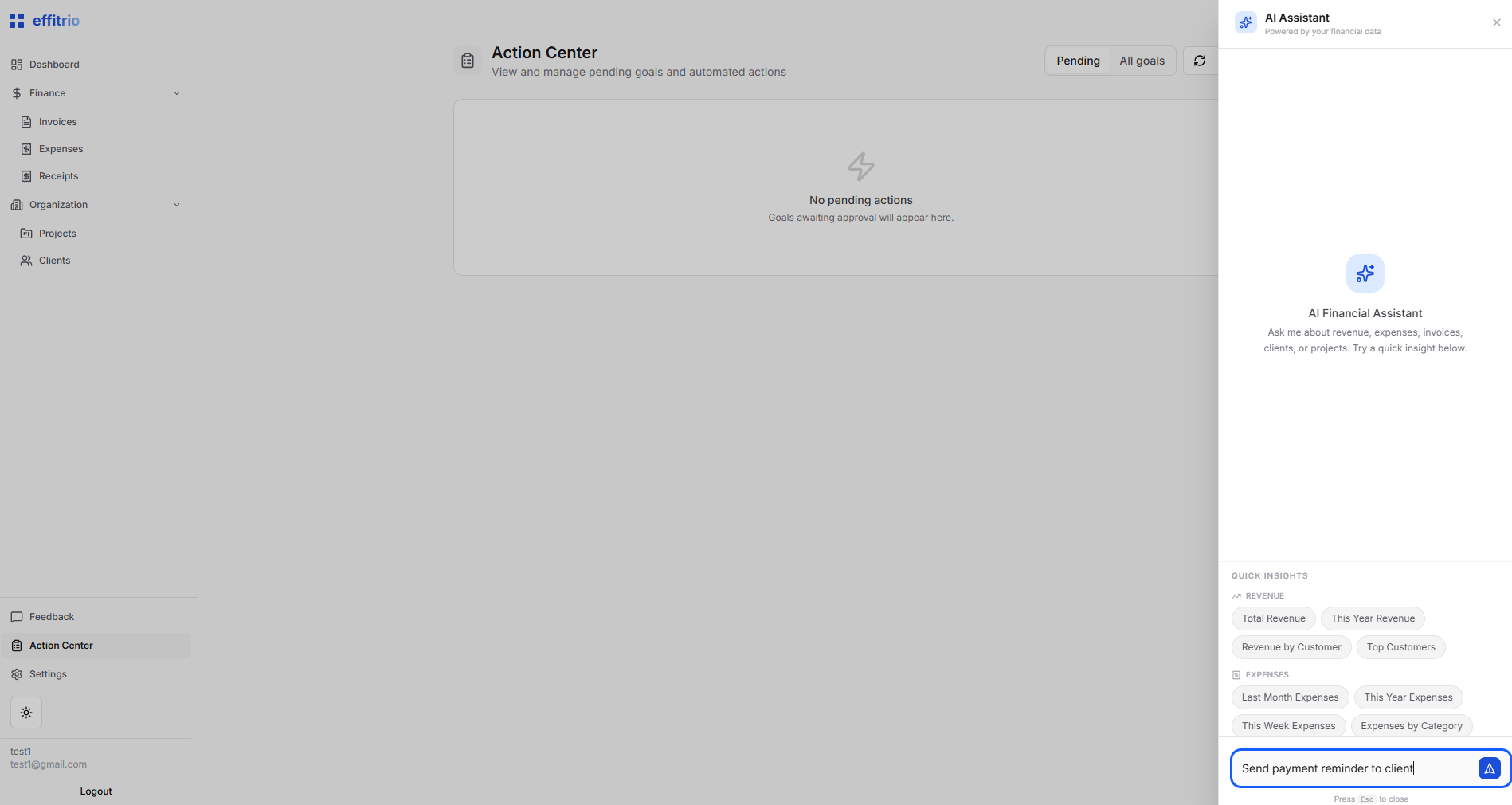
1) Ask AI to send a payment reminder
Use the dashboard AI assistant to request the reminder workflow.
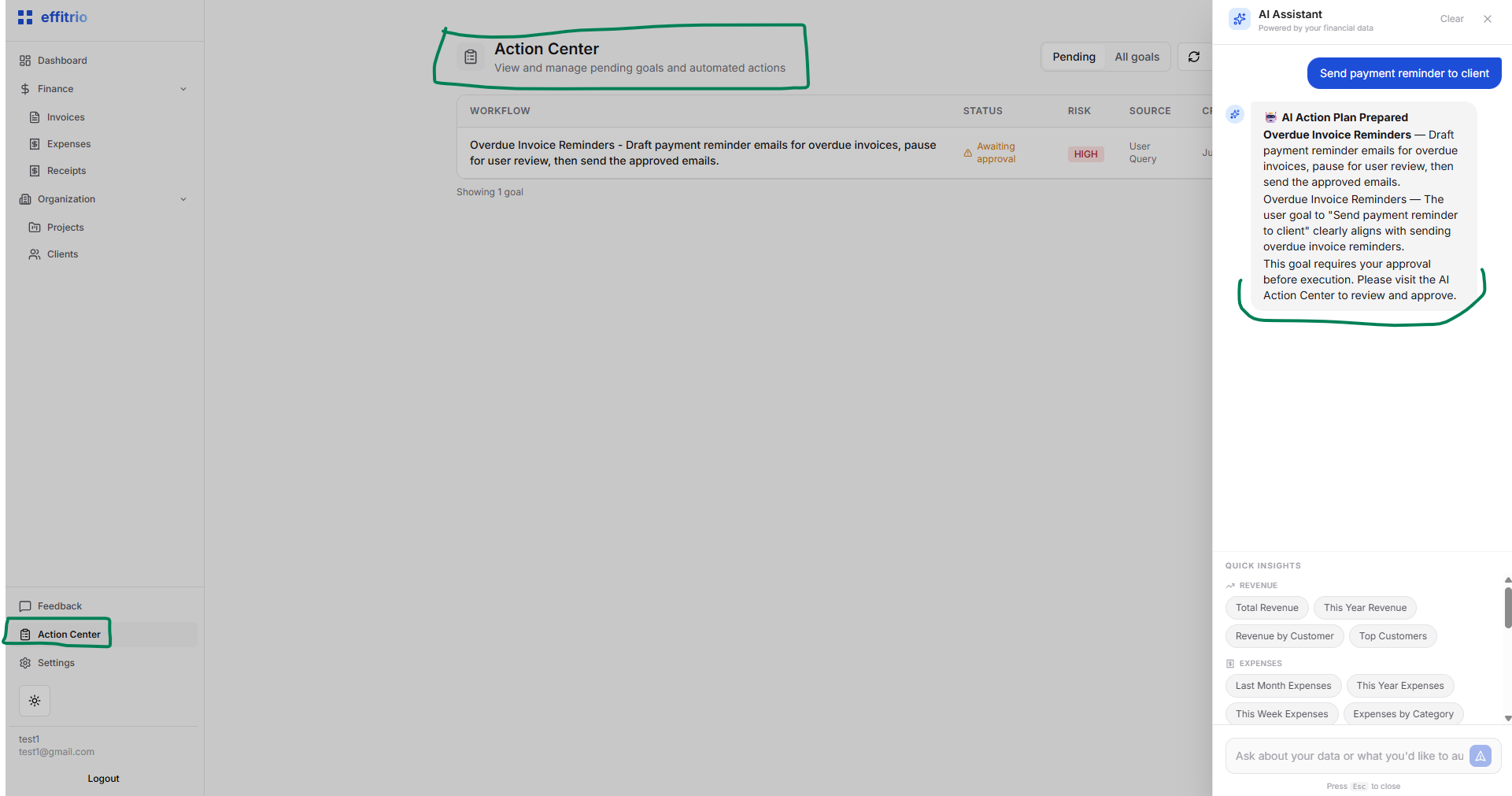
2) Open Action Center and find the planned goal
After the request, Effitrio creates a goal for the workflow and adds it to the Action Center. The goal is typically marked Awaiting approval until you approve it.
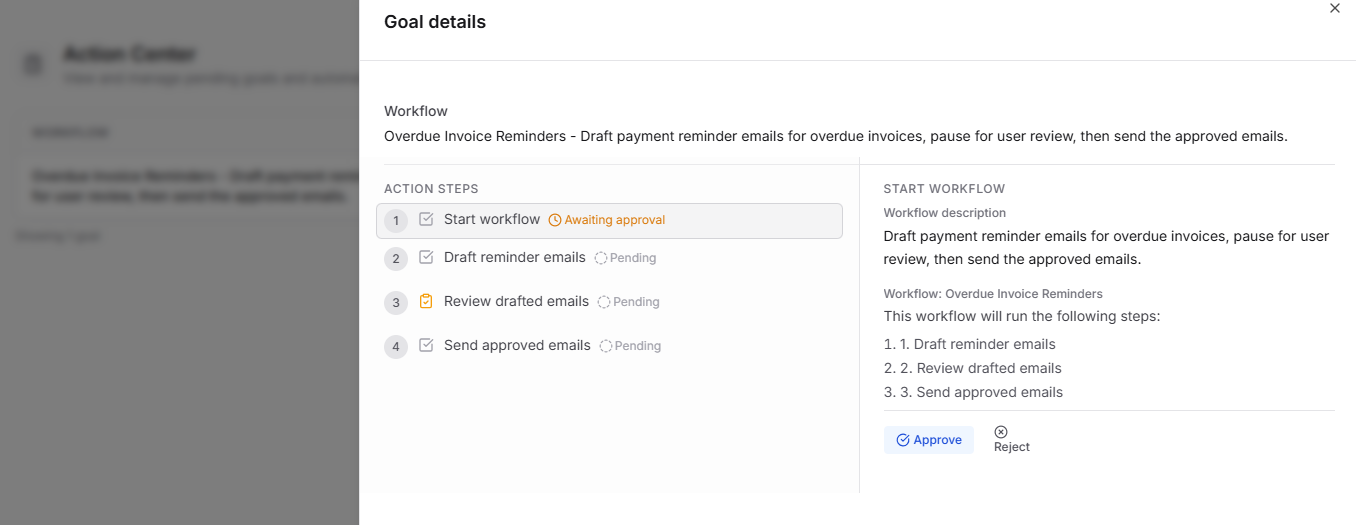
3) Review the goal details and approve to start
Open the goal to see the workflow description and steps. Click Approve to start execution.
You can also Reject if the goal is not what you intended.
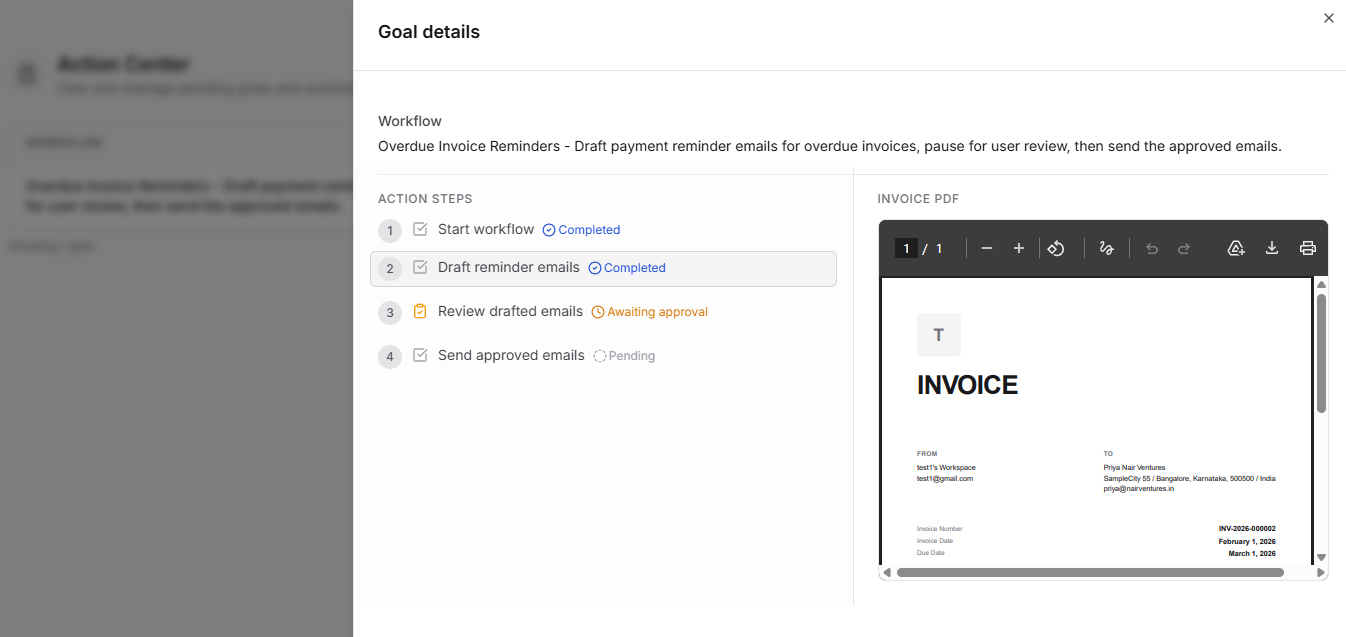
4) Review the invoice PDF (sanity check)
Once drafting starts, you can review the invoice PDF associated with the reminder. This is a quick check that the reminder refers to the correct invoice and amounts.
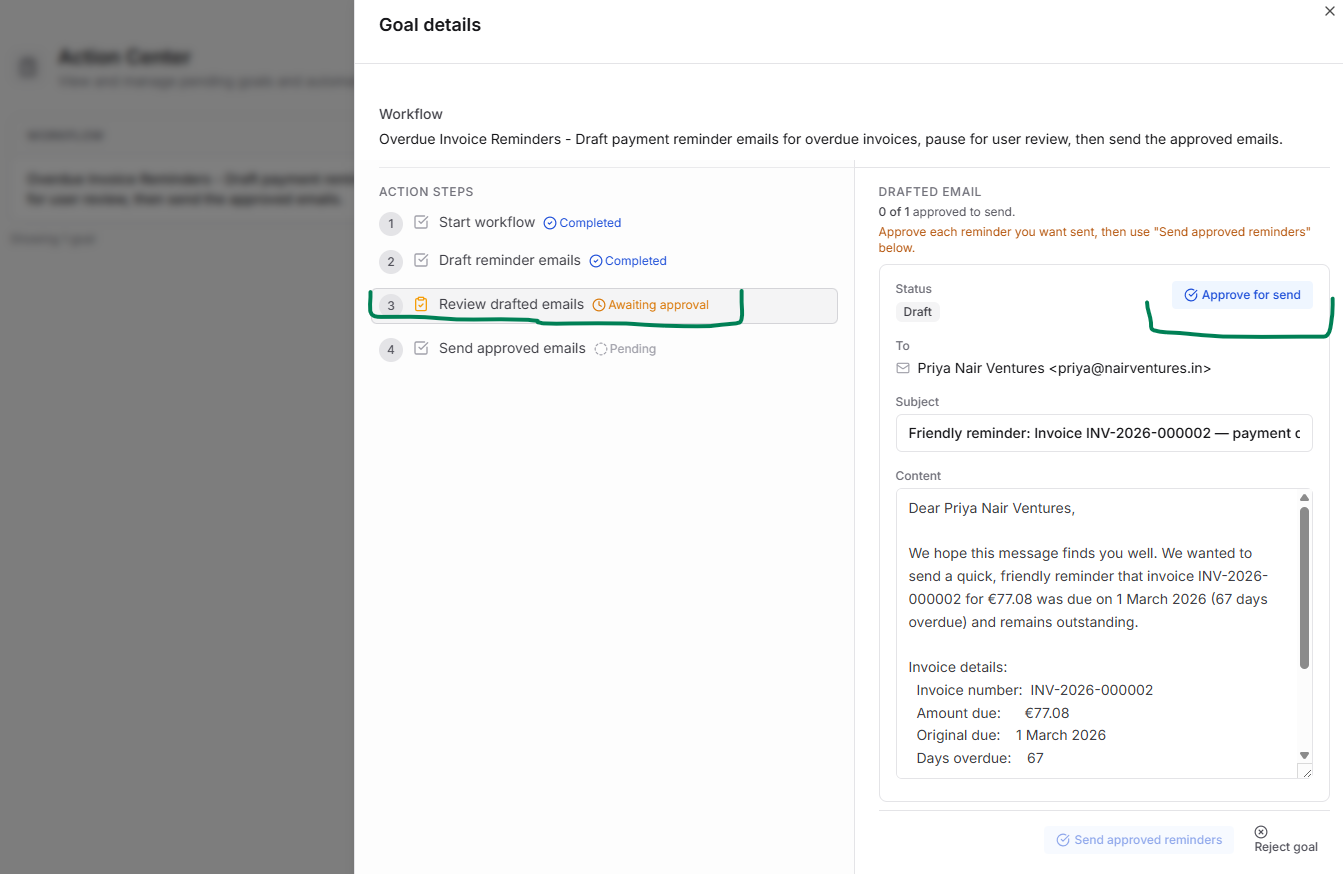
5) Review the drafted email
In the “Review drafted emails” step, you’ll see a draft email with recipient, subject, and content. This step pauses for approval so you can review before anything is sent.
6) Approve the email(s) you want to send
Use Approve for send on each draft you want to send. You can approve one draft, multiple drafts, or none.
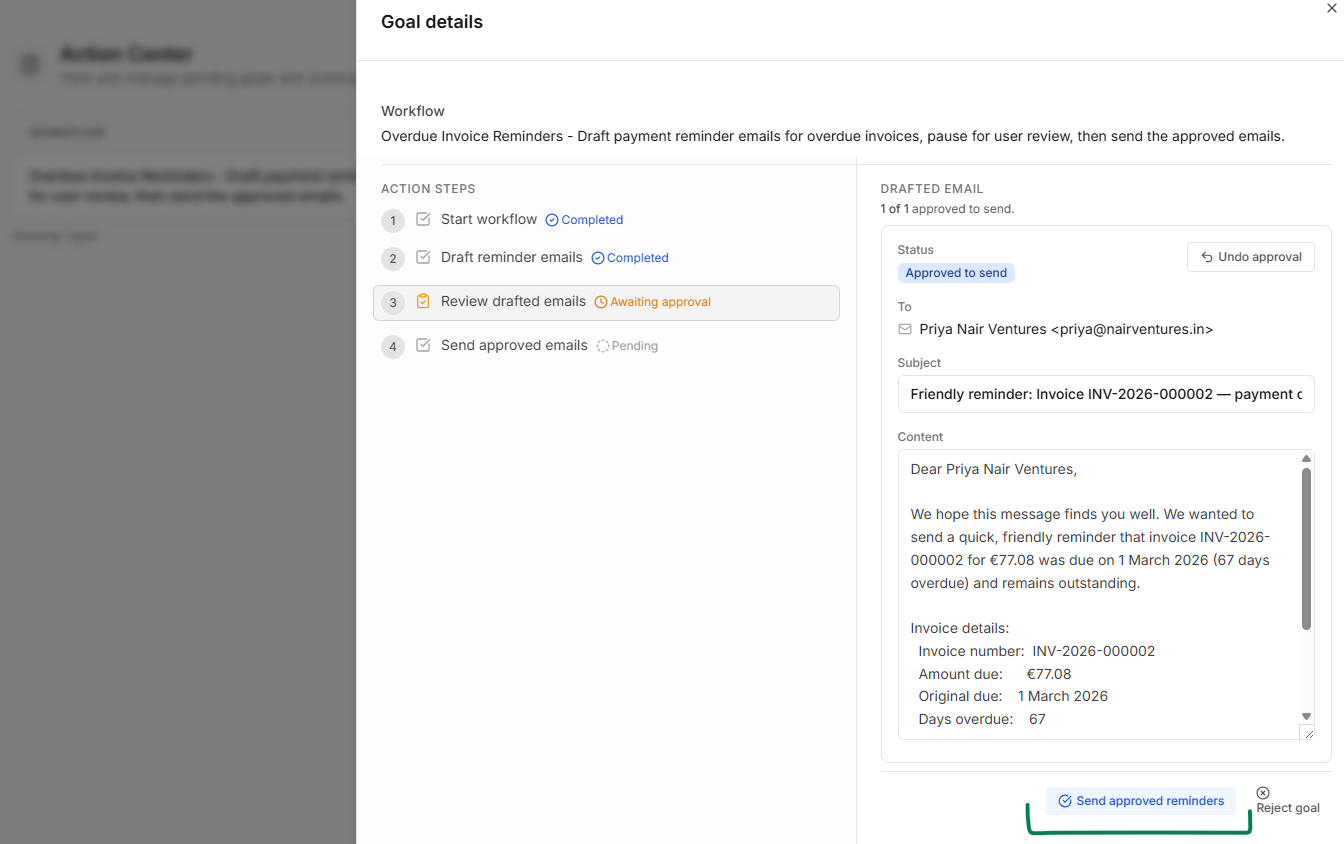
If you approved by mistake, use Undo approval.
7) Send approved reminders
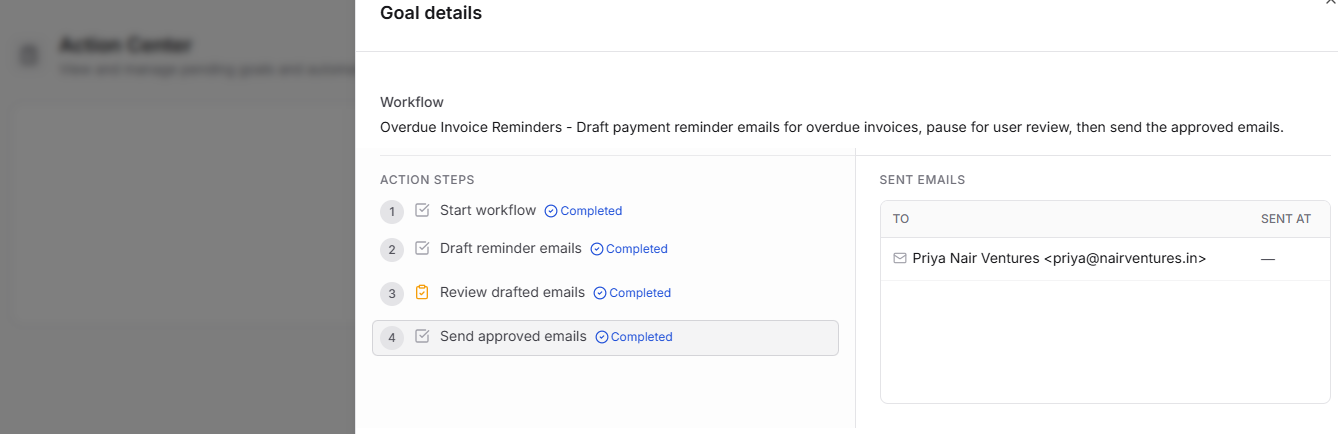
When you’re satisfied, click Send approved reminders to send only the drafts you explicitly approved.
8) Track outcomes in Action Center
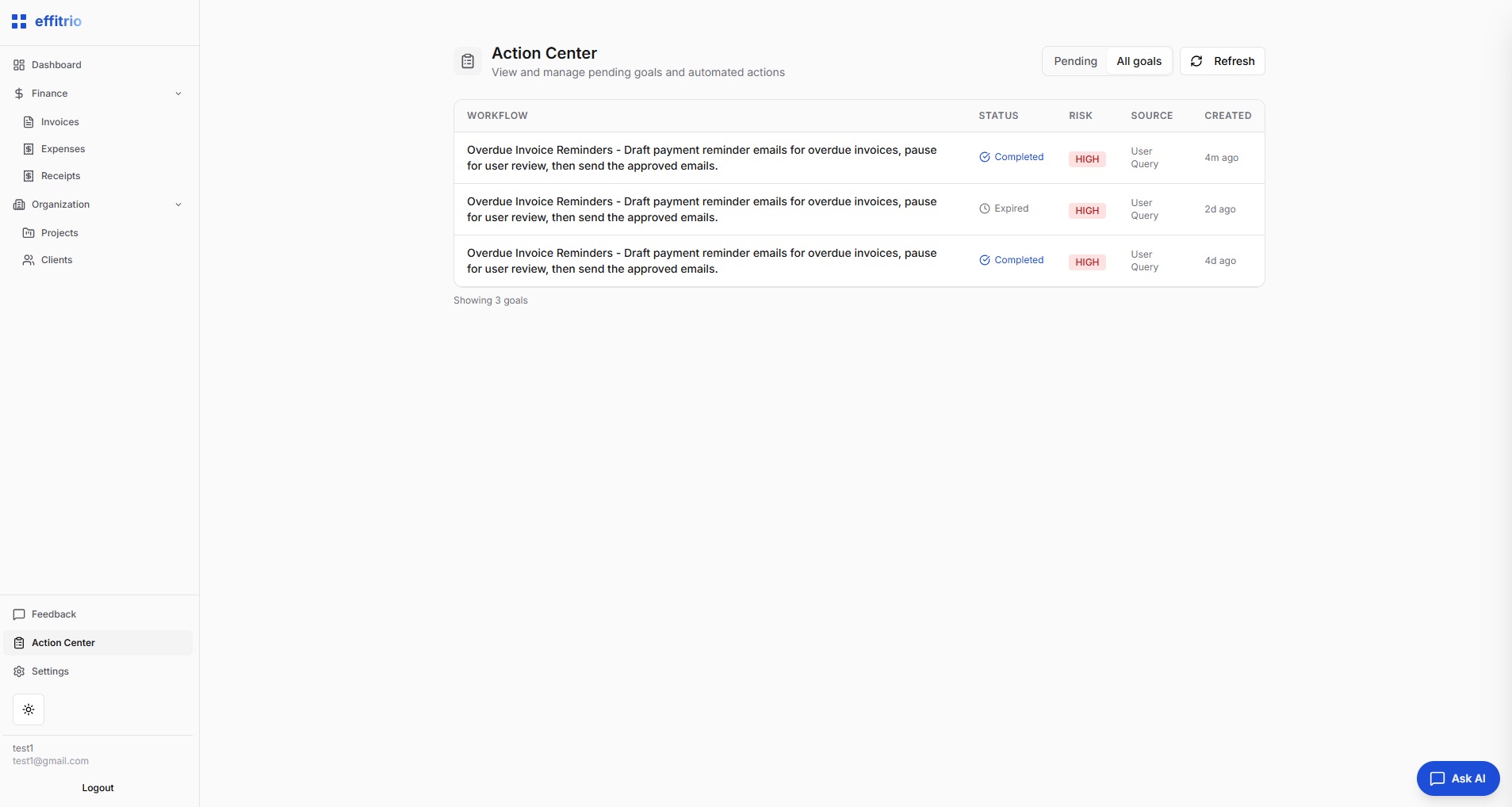
Back in Action Center, you’ll see goals across states like Completed or Expired. This makes it easy to track what was sent and what needs follow-up.
Notes & safety
- Human-in-the-loop by default: drafts are created first; sending requires explicit approval.
- Per-email approval: you control exactly which reminders can be sent.
- Auditability: goals move through visible statuses (pending/awaiting approval/completed/expired) so you can track what happened.
Benefits: how Effitrio saves your time (and cost)
Following up on overdue invoices is repetitive, easy to delay, and expensive in team time. This workflow reduces that cost by compressing the whole process into a guided, reviewable flow:
- Less copy/paste and context switching: Effitrio drafts the reminder email (recipient, subject, invoice details) so you don’t have to assemble it manually from invoices and customer records.
- Faster, safer decisions: You can validate the invoice quickly (PDF preview) and approve what should be sent—without risking accidental sends.
- Batch-friendly approvals: When multiple invoices are overdue, you can approve the drafts you want and send only those approved reminders in one step.
- Clear tracking and fewer “did we send this?” loops: Action Center keeps a history of goals and statuses (completed/expired), reducing internal back-and-forth and duplicate chasing.
- You won’t miss overdue invoices: Effitrio can create reminder goals automatically via background jobs and notify you in the dashboard—so even if you forget an invoice is overdue, you still get a ready-to-review goal (nothing is sent without your approval).